
Add Vizirune to ChatGPT
Upload the plugin ZIP to bring its name, icon and connection settings into ChatGPT, or enter the server details yourself. Both methods use Discord sign-in.
You can set up Vizirune in your browser. Available options depend on your ChatGPT account and workspace.
Upload the plugin ZIP
The ZIP includes Vizirune's name, icon and connection settings, so you don't need to enter the server URL yourself.
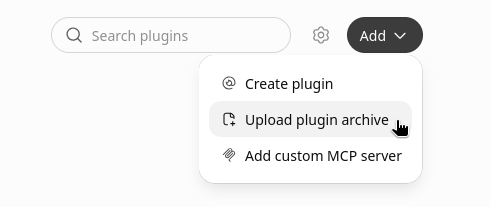
Choose Upload plugin archive
Sign in to ChatGPT Plugins. Open Add and choose Upload plugin archive.
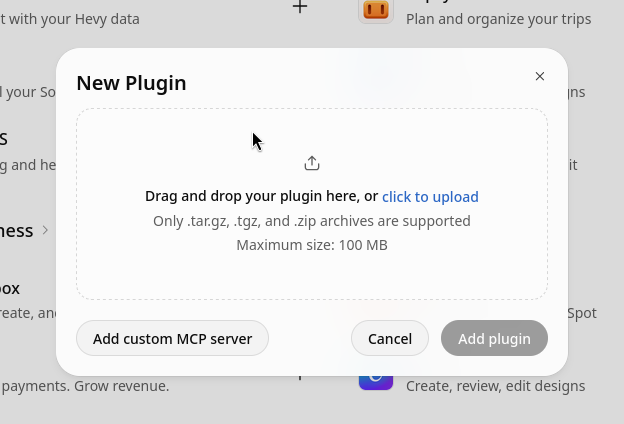
Upload the ZIP
Drop vizirune.zip into the dialog, or choose it using click to upload. Select Add plugin.
Connect and use Vizirune
Install Vizirune from its plugin page, connect its MCP server and sign in with Discord when prompted. In a new conversation, type @Vizirune and ask your question.
Already installed from this download? Open Vizirune's three-dot menu and choose Upload new version with the latest ZIP. Keep the existing plugin so ChatGPT can recognise the update.
Or add a custom MCP server
If you prefer to enter the settings yourself, add Vizirune using its server URL.
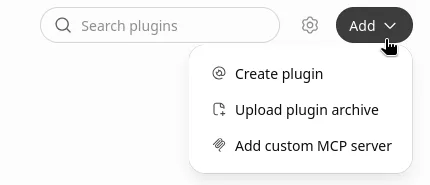
Open Plugins
In ChatGPT, open Plugins from the sidebar. Select Add at the top right, then Add custom MCP server.
Describe the server
Name it Vizirune. Under Connection, keep Server URL selected and enter this address. Set Authentication to OAuth.
https://vizirune.com/mcpLeave Advanced OAuth settings as they are; ChatGPT discovers them from the server. The icon and description are optional.
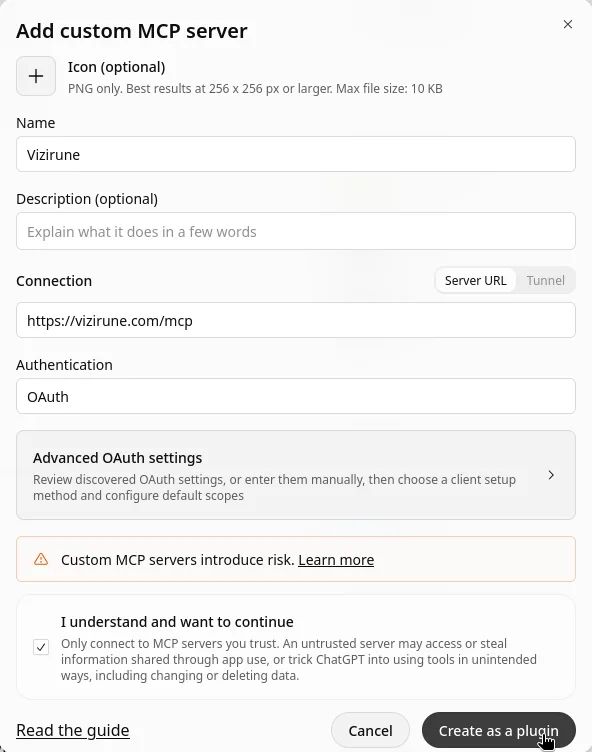
Create the plugin
At the bottom of the same dialog, tick I understand and want to continue, then select Create as a plugin.
Sign in with Discord
ChatGPT opens the Vizirune Connect to ChatGPT page. Select Continue with Discord and authorize.
Install and use Vizirune
Open Vizirune in your personal plugins and select the plus button to install it. In a new conversation, type @Vizirune and pick it from the list, then ask your question.

Your first counsel
@Vizirune Find my last few games. My Steam32 account ID is 123456. Review the most recent match and help me understand my deaths in lane.
Loading a full replay for the first time takes a few minutes. ChatGPT checks its progress and continues when it's ready.
Keeping the connection fresh
For a custom MCP connection, open Vizirune under Plugins › Personal, select Refresh and start a new conversation when the server gains new abilities. For the ZIP method, use Upload new version for updates to the plugin package.
Your sign-in normally carries over when the server restarts. If ChatGPT asks you to reconnect, sign in with Discord again.